
What is AdminLogix?
See how member context, event decisions and participation history connect, and where AdminLogix fits your work.
Who this is for: People evaluating AdminLogix and organizing teams learning the workspace.
Reference guide
Choose a task
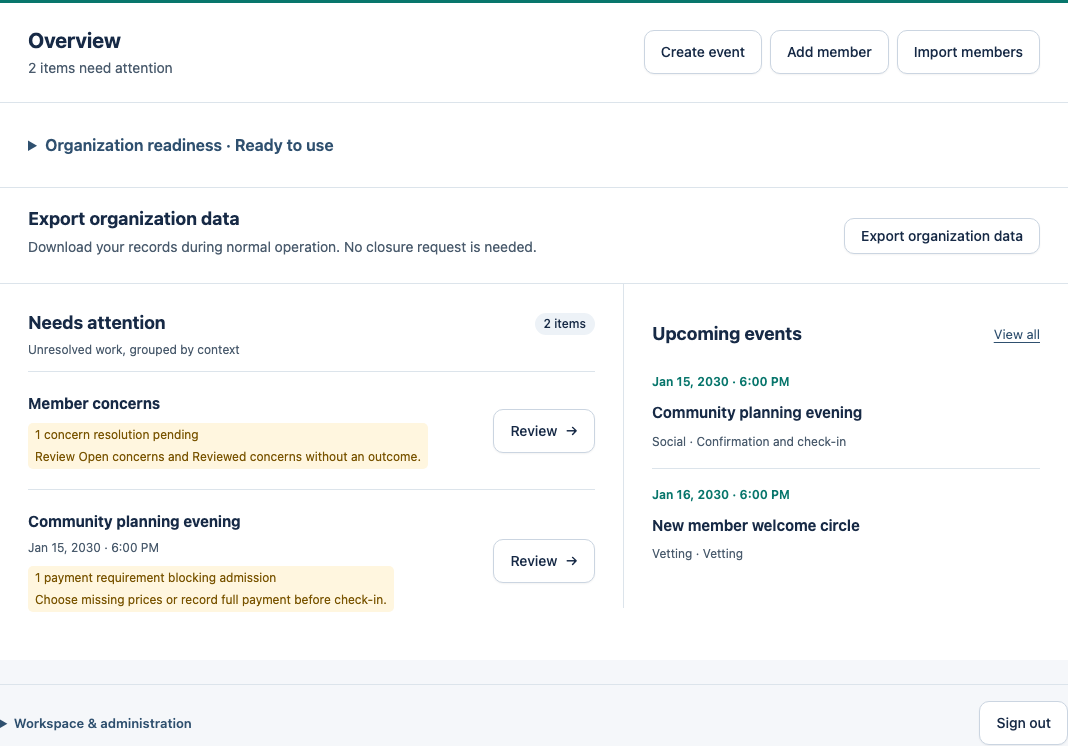
Screenshots use synthetic examples. Your available actions may differ by role and record state. The written instructions remain complete without images.
Connected workspace
AdminLogix is a connected workspace for organizing teams managing members and events. It brings member records, participation decisions and event history together. Work through three related views: your organization, an individual member and an event. Each organization keeps its own records and permissions.
From the dashboard, open work that needs attention. From a member, review current standing alongside past participation and Concerns. From an event, follow its preparation and attendance workflow. Related records and return links keep the originating task and relevant search, filters or page where supported. Each destination checks your current permissions; a return link never grants access.
From member standing to future participation
Vetting, current standing and event rules inform eligibility. Depending on the event, organizers review RSVPs, select or finalize participants, record confirmation responses, then handle required payment and check-in. Attendance, payment records and organizational decisions remain available as history.
A Concern can lead an authorized Owner or Admin to review a member’s standing. Any resulting status change requires explicit confirmation; a report does not automatically change someone’s status. The current standing affects future eligibility, while the earlier decision remains part of the historical record.
For example, an organizer can open a member from an event roster, review the relevant context, take a permitted action and return to the event. Reviewing a record does not grant admission or override another blocker. People make the decisions; AdminLogix keeps the records and operational rules connected.
Who uses it
Owners, Admins, Moderators and authorized Helpers sign in with their own accounts. An Owner can set up an organizing-team account for a member and choose their role. Ordinary members have no member-facing portal, and a Helper flag does not grant sign-in access.
The event-day starting guide is a learning path for people with existing permissions, not a new role. Your organization role determines which actions you can take.
What happens outside AdminLogix
AdminLogix records payments and refunds; it does not charge cards or transfer money. Event-participation invitations and other event messages are sent outside the app. Super Admins invite the first Owner of a new organization. Owners invite additional users from their organization’s user-management screen. External event links are references and do not synchronize another service.
Start safely
Choose the correct organization before working. Use Getting started to check access, then follow the guide for your role. Help uses general instructions and clearly labelled synthetic examples; it does not load your organization’s records.
Search Help by a task such as refund or denied entry. Each guide explains who can act, what to review and what to do if information has changed. A missing control may reflect your role, the organization state or the event state. Ask an Owner or Admin to review the situation instead of creating duplicate records to work around it.
Exploring AdminLogix for a new organization? Use Request access on the home page to describe your needs. The operator will discuss a useful first task and arrange a first-Owner invitation if you proceed. An inquiry itself creates no account or organization.
Example: understand this in practice
In a fictional organization, Maya reviews Jordan’s member context, prepares an event, and later checks the recorded attendance. Invitations to participate and money transfers happen through the organization’s other channels.
Names and situations are fictional.