
Getting started and organization basics
Reach the correct workspace and resolve invitation, account or organization-access problems.
Who this is for: People exploring access for a new organization and invited organizers, including explicitly assigned Helpers.
Reference guide
Choose a task
Screenshots use synthetic examples. Your available actions may differ by role and record state. The written instructions remain complete without images.
Read your dashboard
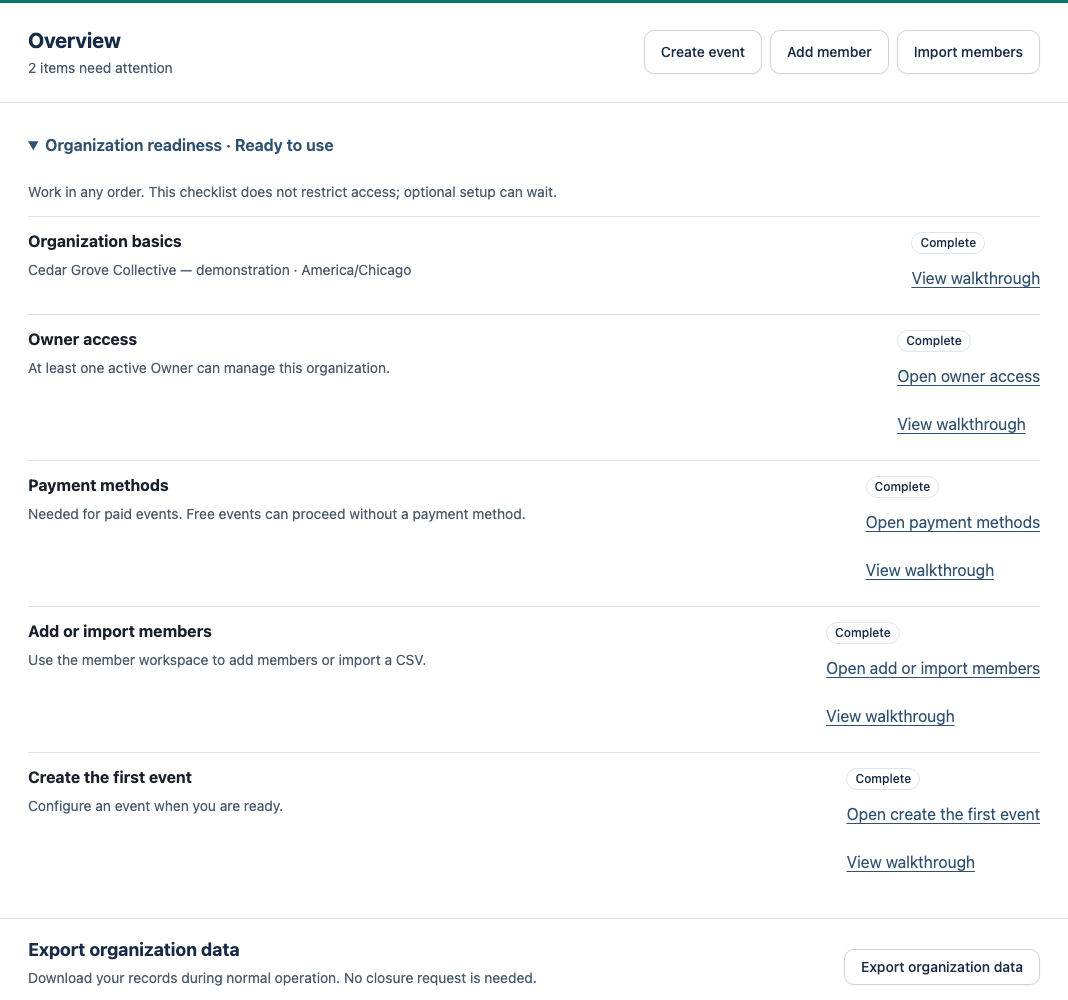
Open Home in the organization navigation. Expand Organization readiness to see saved organization details, Owner access, payment methods when needed, members and the first event. Use the available links to finish setup in any order. Free events do not require payment-method setup. The checklist collapses when no setup item is needed.
Needs attention shows unresolved work that needs a decision, such as Vetting outcomes, concerns, confirmation or replacement work, payment blockers, overdue completion and removal notices an Owner must acknowledge. Choose Review to open the relevant task. Upcoming events appear separately; ordinary arrivals are not an attention backlog.
Use Home in the organization navigation to return. Confirm member-status consequences in their own forms. Readiness does not prevent you from using other available tools.
If your assigned role is Helper, opening the organization takes you to the Helper workspace. Use Check-in or Submit concern. Other organization workspaces are not available to Helpers.
Start from the home page
From the AdminLogix home page, choose Explore AdminLogix to examine the fictional connected-workflow example and assess fit. Existing users choose Sign in in the header. If you already have a session, the home page takes you to your organizations. To accept a new invitation, open its email link. Meet AdminLogix, Roles and access and Getting started link to written guides; reviewed video walkthroughs appear beside their related guides when available.
For a new organization, choose Request access after the fit explanation. Give your email, organization name and the work you want help managing. A received request is an inquiry, not an account or organization. The operator contacts you to agree on a useful first task; a secure first-Owner invitation follows if you proceed. If online requests are unavailable, email admin@adminlogix.app. Existing invitation recipients continue with their email link.
Accept an invitation
You need an invitation to create an AdminLogix account. General sign-in is for existing accounts. If you have not received an invitation, ask the person arranging your organization’s AdminLogix access.
Open your invitation or activation email. Choose Sign in if you already have an AdminLogix account, even if it belongs to another organization. Choose Create an account only if this is your first time using AdminLogix. Use the invited email address. Existing users keep their password; new users set their own. Verify your email and review the assigned username and role. The original first-Owner invitation lets you choose the organization name; manual setup uses the name prepared by the Super Admin. Choose Accept invitation or Activate account to create or join the organization and open it directly. Use Sign out to leave the account.
Invitations expire after 30 days. A canceled or expired invitation cannot grant access. Ask the sender for a replacement if needed. An existing AdminLogix account keeps its assigned username; contact the sender if it does not match.
If Create an account is unavailable, reopen the original invitation email link. A copied page address alone cannot start account creation. Ask the sender for a replacement if the original link is missing or no longer works. Existing users can still choose Sign in and use their current account.
Sign in and choose an organization
Use your own configured sign-in account. After sign-in, a permitted intended page can reopen. With one active organization, its workspace opens automatically; with several, choose the correct organization. Helper accounts open their restricted workspace. Use Your organizations to switch. If no organization is available, ask an Owner to check your account and assigned access. Your role can differ between organizations. Knowing a page address does not grant permission.
Find your tools
From the organization workspace, open the tools available to your role. Owners and Admins manage members and event workflows. Moderators use the permitted event-day and vetting tools.
On the dashboard, Needs attention shows unresolved work requiring human action or a decision, grouped by relevant context. Use Review to open the relevant workflow; upcoming events appear alongside on wider screens and below on smaller screens. Expand Workspace & administration for organization switching and the administrative links available to your role.
Owners manage organization users and roles. Owners and Admins manage payment methods in Organization settings. Set the event type, capacity, participation rules, selection preferences and prices on Create/Edit event. Event times use the organization timezone.
In Manage organization users, choose Existing member to select and link a member from this organization, or Someone new to invite an organizer without a member link. Only the selected form is shown. Pending invitations appear separately from Invitation history, which contains accepted, canceled and expired entries.
If a page is unavailable
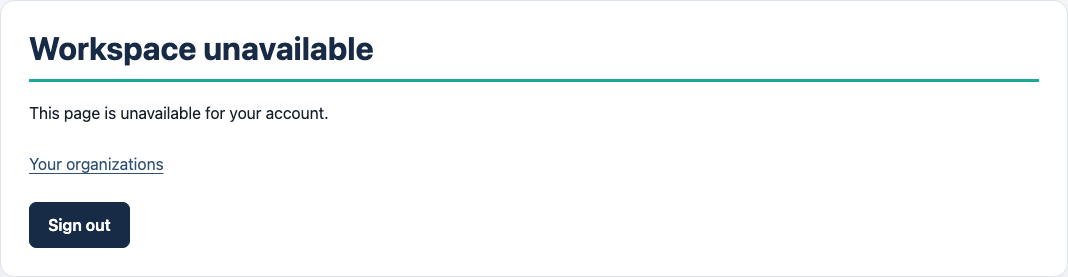
On an unavailable page, choose Your organizations to return to work you can access, or Sign out to use a different account. Signed-out visitors can choose Go to sign-in. If your session cannot be verified, sign in again. Opening sign-in while already signed in takes you to your organizations. Ask an Owner about disabled access or organization lifecycle status.
For a temporary page problem, use Try again to reload the current data, or return to your organizations. Before retrying a save, check whether it already completed. If information changed, reload and review the current state before submitting again. Do not repeat a payment outside AdminLogix because the page was slow.
Use the sign-in recovery path if you cannot access your sign-in account. Do not send passwords or recovery codes to another organizer. If sign-in is unavailable in the current environment, Home and Help remain available.
Inactive and archived organizations
An Owner-requested closure starts a 30-day Inactive period with authorized read/export access. Changes are unavailable. The displayed archive date is the deadline for new exports, even if scheduled archival has not run yet. Archived organizations no longer allow operational access. Consult an Owner if you need lifecycle assistance.
After an Owner confirms organization closure, AdminLogix returns to that organization’s read-only workspace. Check the Inactive banner and export deadline. Closure preserves your sign-in account and access to any other organizations. If none remain active, an empty organization list does not mean your account was deleted.
Example: understand this in practice
Jordan accepts an invitation to a fictional organization using the invited email. Another organization may give Jordan a different role, so Jordan checks the workspace before acting.
Names and situations are fictional.