
Event-day check-in and attendance
Understand attendee states, payment requirements, admission blockers and event-day handoff.
Who this is for: Owners, Admins and Moderators at check-in; Helpers use the separate Helper task.
Help when this task is blocked
Reference guide
Choose a task
Screenshots use synthetic examples. Your available actions may differ by role and record state. The written instructions remain complete without images.
Read the attendee’s current state
On an Open event’s check-in roster, search all or part of a nickname or name. Results can identify an expected attendee, someone already checked in, someone not on the attendee list, or someone blocked or ineligible. More than one label can apply. A search match alone never permits admission.
Read every blocker shown in the row. Member suspension or ban takes priority, followed by an invitation block, denied entry, removed or unaccepted participation, a refund, then price or payment requirements. Resolving one blocker does not clear the others.
Owners and Admins can follow an available resolution link and return to the same roster search. Moderators ask an Owner or Admin to resolve governance restrictions. Roster counts describe accepted eligible attendees; search may also find other members.
Check-in for a paid event requires its payment conditions to be met. Recording a door payment and attendance is one save; there is no unpaid override.
Helpers use their dedicated Check-in workspace. Choose an open event, find the attendee and select Check in. A blocked attendee must be referred to an Owner or Admin; Helper access grants no payment, denial or outcome controls. Helpers can check in regular and Vetting attendees but cannot read Vetting notes or outcomes.
Check-in opens 60 minutes before the scheduled start and closes at the scheduled end, in the organization timezone. Read the window shown on the roster and refresh when it opens. An Owner or Admin can adjust it; an Open event does not by itself authorize early arrival recording.
Owner/Admin advance payment remains available separately. A combined payment/check-in outside the window records neither payment nor attendance.
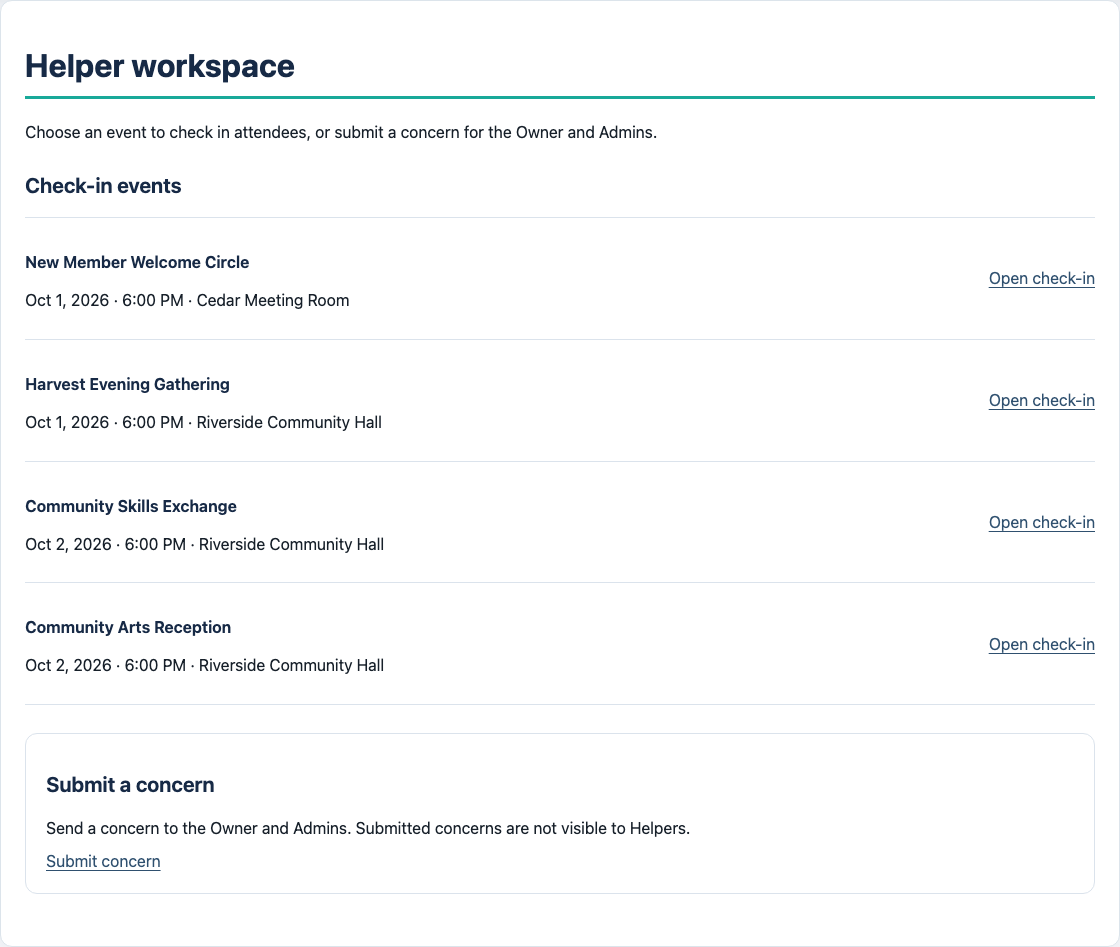
Open the correct event roster
Check the organization and event before opening Check-in roster. Search for the attendee. The normal regular-event list contains eligible Confirmed or confirmation-not-required participants. People already checked in appear below people waiting.
If someone is missing, ask an Owner/Admin to review eligibility, confirmation, removal or denial. Do not create a second member or assume that being on an RSVP list is enough for admission.
Find the next participant
Choose All accepted, Awaiting check-in, Checked in or Denied entry to filter the roster. Search combines with that filter across the full list; pages show up to 25 people. Choose the event price and payment method directly in the participant row when needed, then click the check-in button. No expansion or confirmation checkbox is needed. The amount-bearing payment/check-in button confirms money has already been received and saves the selected price, payment and attendance together. More options & history contains optional actions and recorded details.
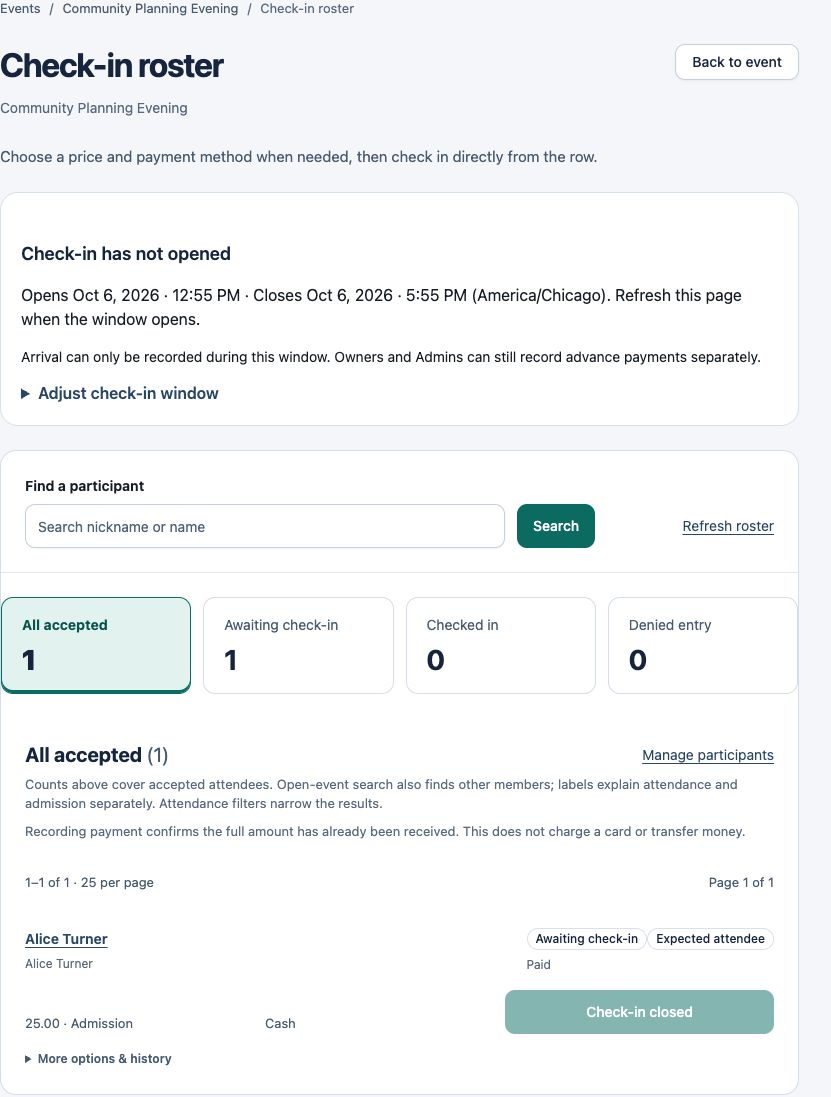
Set up payment methods
Owners and Admins can open Settings → Payment methods to add or rename a method. Choose Remove to hide a method from new payment choices; past payments keep their original history. To use it again, expand Removed methods and choose Restore. If check-in reports that no active methods exist, add or restore one here first.
Record payment and attendance carefully
If event pricing applies and no price is assigned, choose a price in the row. If money is owed, choose the method used to receive it, then click the amount-bearing payment/check-in button. The button is the confirmation; there is no separate checkbox. A failed save leaves the new price, payment and attendance unchanged. AdminLogix records money received; it does not collect it.
Already-paid attendees can be checked in without another payment. Free or no-price attendance needs no payment method. Review the updated result before moving on. If the page is slow or a save fails, reload to establish the recorded state before retrying.
Denied entry is a separate action
Owner, Admin and Moderator can deny eligible entry before attendance is recorded, with a reason. Denial prevents normal payment/check-in and preserves its actor and time. It does not automatically suspend, ban or refund someone.
Only an Owner or Admin can reverse denied entry, with a review reason. Reversal does not check the person in. Already-recorded attendance cannot be overwritten through denial.
Vetting and end-of-event handoff
Vetting check-in uses the imported Vetting list. Existing Suspended/Banned members may attend Vetting under its specific exception; this does not restore status or allow regular-event admission.
Moderators can use permitted Vetting Notes while Open, but only Owners/Admins decide outcomes and complete events. Hand unresolved attendance or payment questions to an Owner/Admin before completion.
If you cannot finish
Why is check-in unavailable for a future event?
The check-in window has not opened. Check its displayed times and return when it opens. Only an Owner or Admin can adjust the window; resolving another admission blocker does not bypass timing.
Example: understand this in practice
At a fictional paid event, Jordan is found in search but has a payment blocker. An authorized operator resolves the payment requirements; finding Jordan does not itself permit admission.
Names and situations are fictional.