
Payments, refunds and recording errors
Understand what financial records mean and which refund or correction action fits the situation.
Who this is for: Owners and Admins managing financial records; permitted check-in operators recording door payments.
Reference guide
Choose a task
Screenshots use synthetic examples. Your available actions may differ by role and record state. The written instructions remain complete without images.
Payment recording is not payment processing
AdminLogix does not charge a card, send money or initiate a refund. First establish what happened outside the app, then record the fact. Select an applicable event price; do not type an arbitrary amount.
Owners/Admins can record advance payment. Owners/Admins/Moderators can record payment together with eligible check-in. A participant has one payment and one method per event; installments and partial balances are not supported.
Set up payment methods
Owners and Admins can open Settings → Payment methods to add or rename a method. Choose Remove to hide a method from new payment choices; past payments keep their original history. To use it again, expand Removed methods and choose Restore. If check-in reports that no active methods exist, add or restore one here first.
Record a full refund
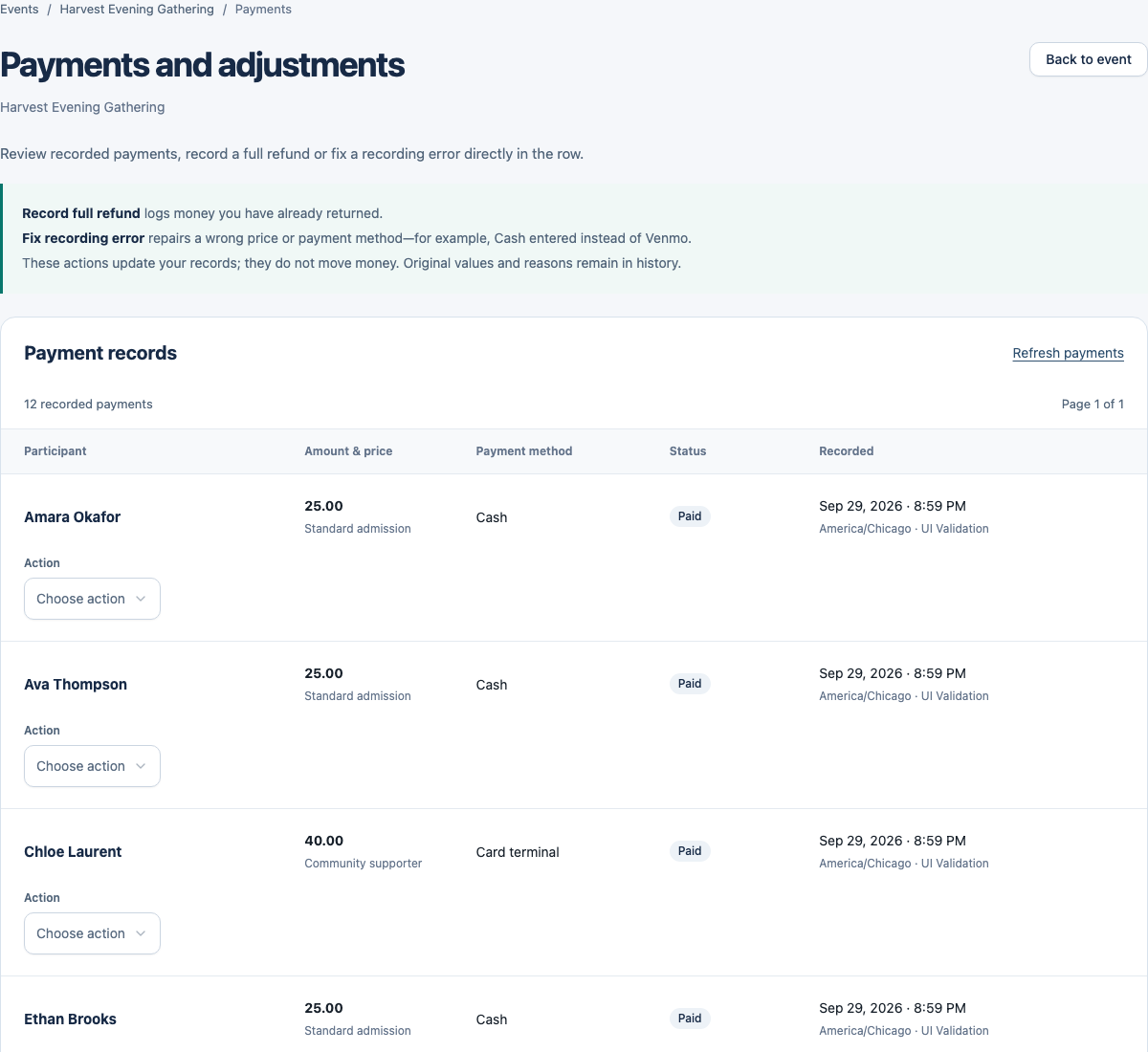
Owners/Admins open the event’s Payments and adjustments page. In the payment row, choose Record full refund, enter a reason and click the amount-bearing Record refund button. That click confirms the full amount was already returned; no checkbox is needed. Original collection and attendance remain in history.
There is no partial refund, delete/void, refund reversal or normal refund-then-repay flow. A refund does not reactivate removed participation or reverse denied entry. Moderators cannot perform refunds.
Correct an original recording error only
Owners/Admins choose Fix recording error in the payment row, select the correct configured price and payment method, enter a reason and click Save correction. For example, repair Cash recorded instead of Venmo. The button confirms the correction; no checkbox is needed. The original and corrected values remain in history. This repairs an original mistake, not a discount, partial refund or transfer.
If a fully paid participant’s carpool arrangement changes later, leave the assigned price and payment unchanged. Handle any difference outside AdminLogix. Do not use correction to invent a top-up or credit.
Review totals and recover from conflicts
Reports distinguish gross collections, refunded amounts and net. Closed events retain their financial facts. Owner/Admin adjustment access follows its separate rules; an Inactive organization is read-only.
If a payment review is out of date, reload it and confirm the latest facts. Check whether money was already received or returned before doing anything outside the app again.
Example: understand this in practice
Maya returns Jordan’s full payment outside AdminLogix, then records the refund and reason. Selecting Record refund does not move the money.
Names and situations are fictional.