
Create, run and complete events
Understand the event journey from Draft through participation, attendance and retained history.
Who this is for: Owners and Admins preparing and managing events.
Reference guide
Choose a task
Screenshots use synthetic examples. Your available actions may differ by role and record state. The written instructions remain complete without images.
Find events in one calendar
Single-day and multi-day events share the weekly view. Overnight events show continuation labels; phone layouts use an agenda. Dates display like Sep 25, 2026 · 3:30 PM in the organization context. The weekly calendar’s Go to date control may look different depending on your device.
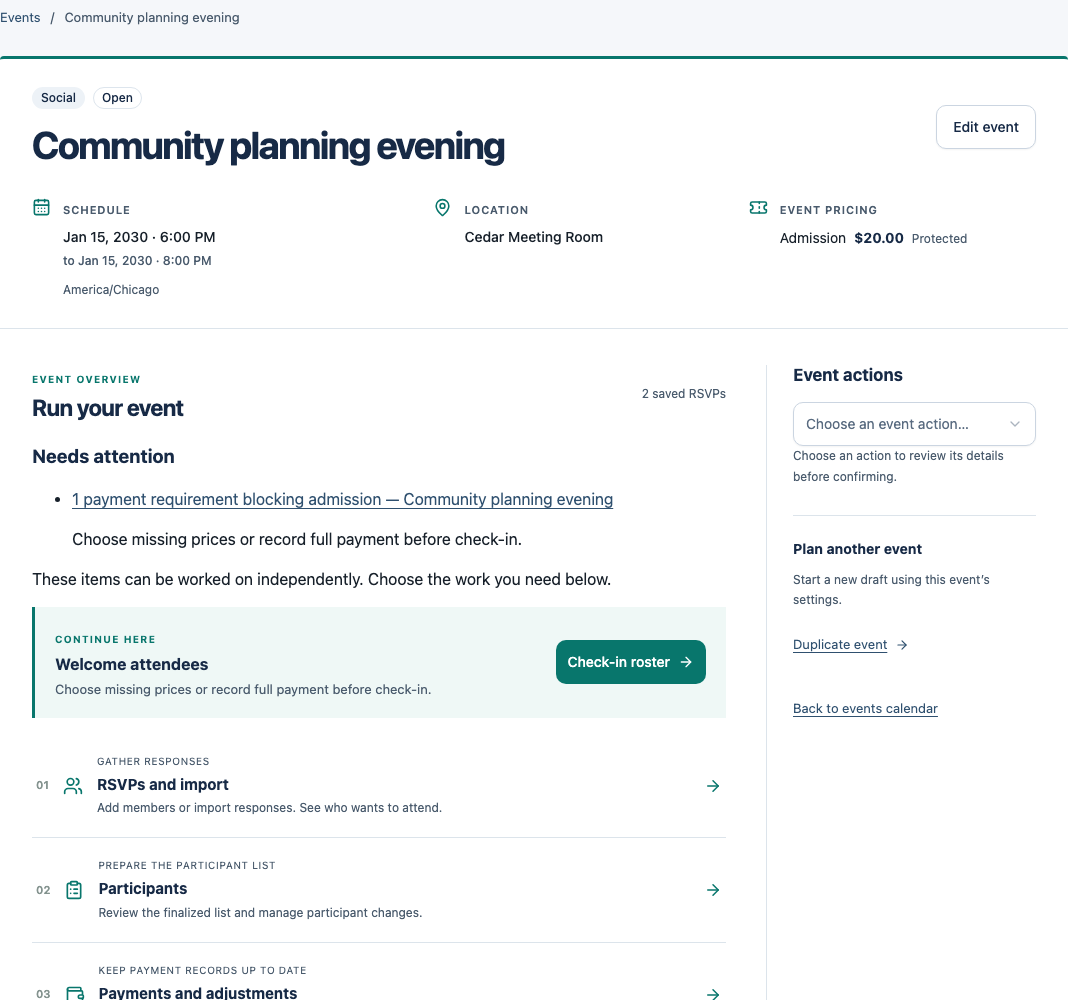
The event overview brings its schedule, location and prices together. For an Open event, Continue here opens authorized unfinished work before the usual stage suggestion. Read its description and destination: Vetting outcomes opens unresolved outcome work; Vetting list remains the separate imported-attendee workspace. Participant tasks can open a focused view such as Awaiting response. Other available workflows remain below it, including the full participant workspace. Edit event opens a continuous form with section links and returns here after saving.
Choose an event action from the dropdown to open its review controls. Choosing the action alone does not save it; read and complete any required confirmation.
Prepare a Draft
Open Events and choose Create event. Set the event type, title, local start/end times, location and participation settings, then save the Draft. To reuse an existing setup, open that event and choose Duplicate event. Enter a new title and dates, then choose Create duplicate Draft. The new Draft opens for editing; review its copied settings before opening it.
For Start and End, type a date as MM/DD/YYYY or use the calendar button, then enter a time such as 6:30 and choose AM or PM. Times use the organization timezone shown above the fields. Both fields can stay blank for an incomplete Draft; if you begin a date/time, complete it or clear both parts before saving. Duplicate event uses the same date and time controls.
In Event pricing, enter a price name and amount for this event, or leave pricing empty for a free event. Add more named prices if different participants pay different amounts. Prices belong to this event; there is no reusable organization price catalog. Used prices are protected. Saving the draft returns to the event overview, where you can check its prices before opening it.
Under Attendance & workflow, enter the Maximum number of attendees when using attendee recommendations. Select “Let AdminLogix recommend the attendee list” to generate a proposed list from RSVPs for your review. Select “Require participants to confirm attendance” to track accepts, declines and outstanding responses. Suspended and Banned members cannot participate in regular events; this rule is always enforced.
Your guest list preferences lets you ask for extra room to keep groups together, extra places for Helpers, or a mix of first-time guests and people who came last time. Leave the choices unchanged if you have no preference. Choose a number or a percentage if you have one. AdminLogix uses attendance from events marked Completed. These are preferences, so the final list may include more or fewer people from either group. See an example explains how percentages work.
Before opening, resolve missing information and any ambiguous daylight-saving time. Review capacity, workflow switches and prices for a regular event. Only Open events accept operational work.
When creating an event, expand Description and planning notes only if needed. An event stays free unless you add a price. If attendee recommendations are enabled, expand Your guest list preferences to adjust the preferences; longer examples are under See an example. Collapsing a section keeps your entries. On a phone, Create Draft stays at the bottom while you work. Required opening information and errors remain visible; saving a Draft does not open the event.
For example, a First-time guests preference of 25% with 40 regular attendee places gives a target of 10. With 10 places it rounds up to 3. It is not a guaranteed quota, and extra Helper places are excluded. Eligibility, available RSVPs and linked companions affect the result.
Choose the correct workflow
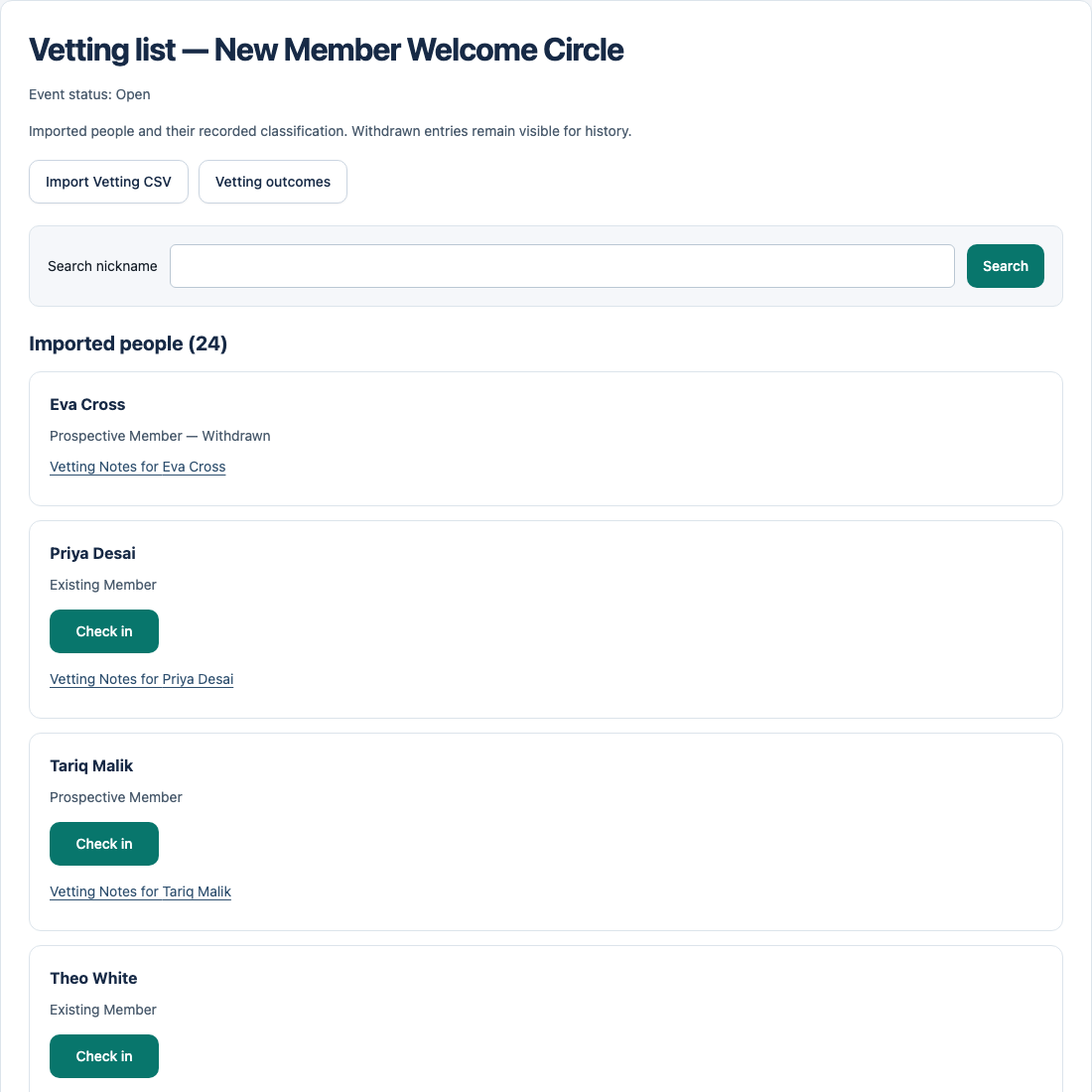
Regular events use RSVP, selection and confirmation according to their settings. Vetting uses an imported attendee list and prospective-member outcomes instead. It does not use the regular selection and payment workflow.
Workflow-affecting settings lock after the first RSVP. Read the impact warning before editing an Open event. Changing capacity does not silently rerun selection or remove people.
Check-in opens 60 minutes before the scheduled start and closes at the scheduled end, in the organization timezone. Read the window shown on the roster and refresh when it opens. An Owner or Admin can adjust it; an Open event does not by itself authorize early arrival recording.
Complete a regular event deliberately
Review attendance and eligible no-shows before completing the event. Owners and Admins may select eligible no-shows for suspension; none are selected by default. Completing without selecting anyone adds no new restriction.
Completion retains history and cannot be reopened. Pending responses, declined, removed and denied participants are not blindly marked as no-shows. Suspensions selected at completion preserve recorded payments and attendance.
Vetting, cancellation and reuse
RSVPs, participants, check-in and payments keep the event overview you came from. Returning from a member restores the RSVP page. Roster searches, attendance filters and pages survive participant and payment detours. Back to event restores the same overview, including its member-history origin. Finalizing participants keeps this context; it still requires your explicit review and confirmation.
For Vetting, check in imported attendees and have an Owner/Admin record an outcome for every checked-in prospective member. Approved prospective attendees become Active members only when completion succeeds. An approval alone does not create membership.
Vetting keeps your searched list and page when you open notes, import or outcomes. Saving or canceling a note returns to the same note page. Saved outcomes keep the current search and page; a new selection starts empty. Import results remain visible until you return to the list. Back to event restores the overview you came from.
Cancellation retains history. Canceled Vetting creates no members. Duplicate Event creates a new Draft from configuration, not a copy of people, payments or attendance. Review its name and dates before opening it.
To approve several people together, choose Approve several attendees, select their checkboxes, then review and confirm. Cancel group approval clears the selection without saving. For one person, choose an outcome from their dropdown and select Save outcome.
Example: understand this in practice
Maya duplicates a past event to reuse its configuration. The new Draft has no copied participants, payments or attendance; the previous event keeps its history.
Names and situations are fictional.