
Members, concerns and status changes
Keep member records accurate and distinguish administrative context from concerns and restrictions.
Who this is for: Owners and Admins managing member records and concerns.
Reference guide
Choose a task
Screenshots use synthetic examples. Your available actions may differ by role and record state. The written instructions remain complete without images.
Import members
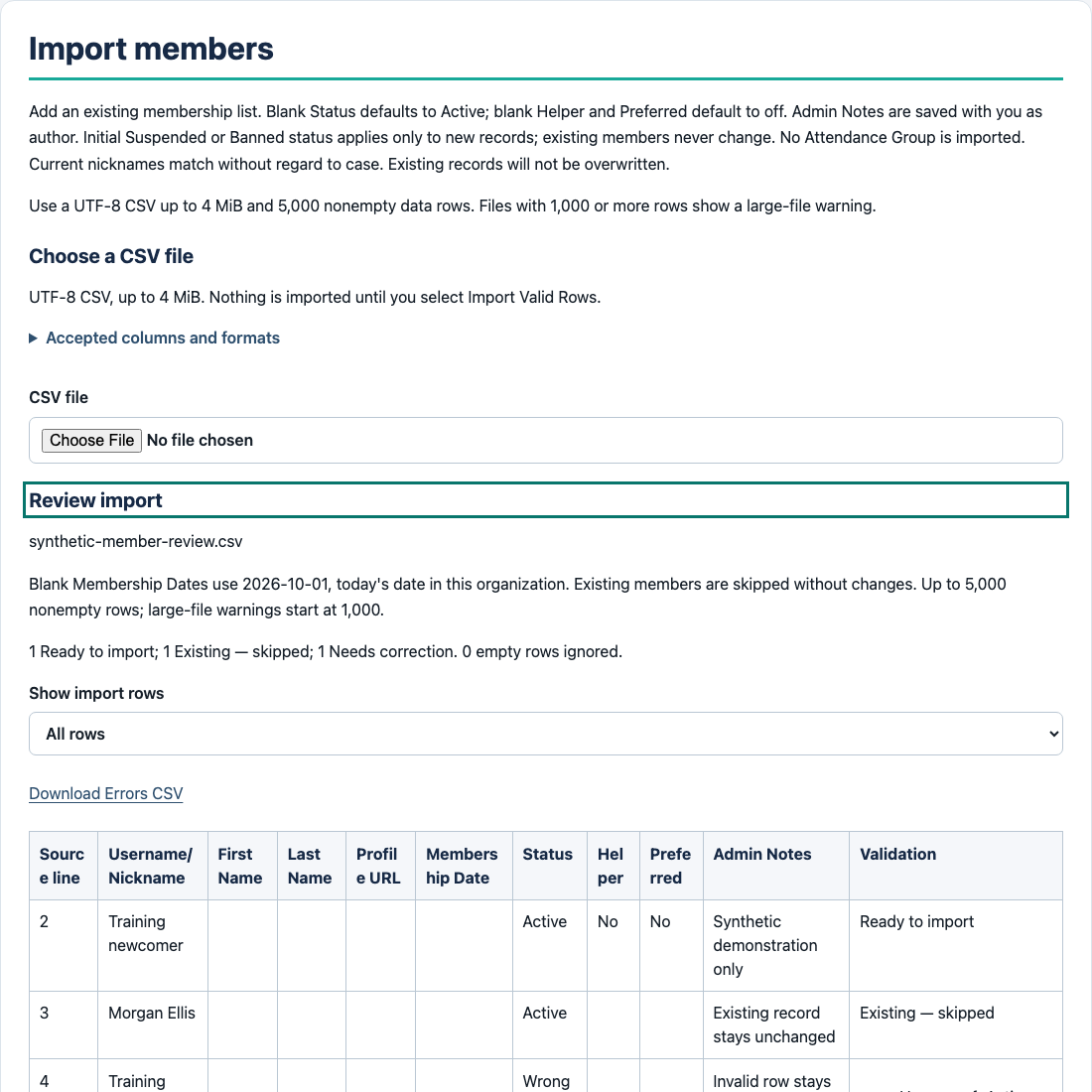
Owners and Admins open Members, then Import members. Choose a UTF-8 CSV file. AdminLogix reviews the file before anything is saved. Review the counts and row details for Ready to import, Existing — skipped and Needs correction; check Ignored columns separately.
Current nicknames match after trimming spaces and ignoring letter case. Existing matches are skipped without changing the member, and are not included in the corrections CSV. If multiple new rows use the same nickname, correct those rows. Download the corrections file when offered, fix the source file, then choose it again.
Choose Import Valid Rows to save only the valid new members, or Cancel to leave without importing. Valid rows can be imported while other rows are skipped or need correction. The result reports imported, existing-skipped and invalid counts separately. Use Back to members to return to your original filters and page.
Username/Nickname is required. Membership Date accepts YYYY-MM-DD or MM/DD/YYYY and defaults to the import date. Blank Status defaults to Active; otherwise use Active, Suspended or Banned. Helper and Preferred accept Yes/No, True/False or 1/0; blank means off. Optional fields can stay blank. Notes keep you as author and are checked for length rather than silently shortened.
Use files up to 4 MiB and 5,000 nonempty data rows. A warning appears at 1,000 rows. Initial status and notes apply only to newly created members. Import does not merge records, update existing members or assign Attendance Groups.
Find or add a member
Open Members and search by the current nickname or name. The default list shows Active members; change the status filter if someone is missing. Dropdown filters apply immediately; press Enter or Filter members to apply typed search.
Owners and Admins can choose Create member or open a member and choose Edit member. Creating a member opens the new record with a return link to your filtered list. An unmatched RSVP does not create a member.
For a bulk task, select members from the current page, then review the action. Keep the per-member results visible while checking successes and retrying eligible failures. Return to the same list when finished. Attendance Group linking also preserves the list’s filters and page. Starting a new selection clears old checkboxes.
Attendance Groups use saved friendly names so you can recognize linked companions across views. Group names are separate from first-time or returning guest categories.
Notes and concerns serve different purposes
Use Member Admin Notes for general administrative context. Only the original author can edit or hide their own note; an Owner does not gain permission to edit another author’s note.
Use a structured concern for safety, behavior or incident information. Open Member concerns from the organization workspace, or use the member’s concern links. Supply a factual summary and, if needed, a longer narrative. A member link is required. An event link is optional and may refer to a completed event without unlocking it.
After a successful save, you return to the member’s concern section or the filtered concern list you came from. The list keeps its filters and page; if closing a record empties the last page, it shows the last available page. Member flag, group unlink and note changes also keep the member’s return link to your originating list or event.
All Owners and Admins in the organization can view concerns in V1. Moderators cannot. Do not treat a concern as a private note for only its author. Attachments and investigation workflows are unavailable.
Helpers use Submit concern in their restricted workspace to choose a member and send a factual summary and details to the Owner and Admins. A submission confirmation is shown, but Helpers cannot view or edit submitted concerns, including their own.
Review operational consequences before confirming
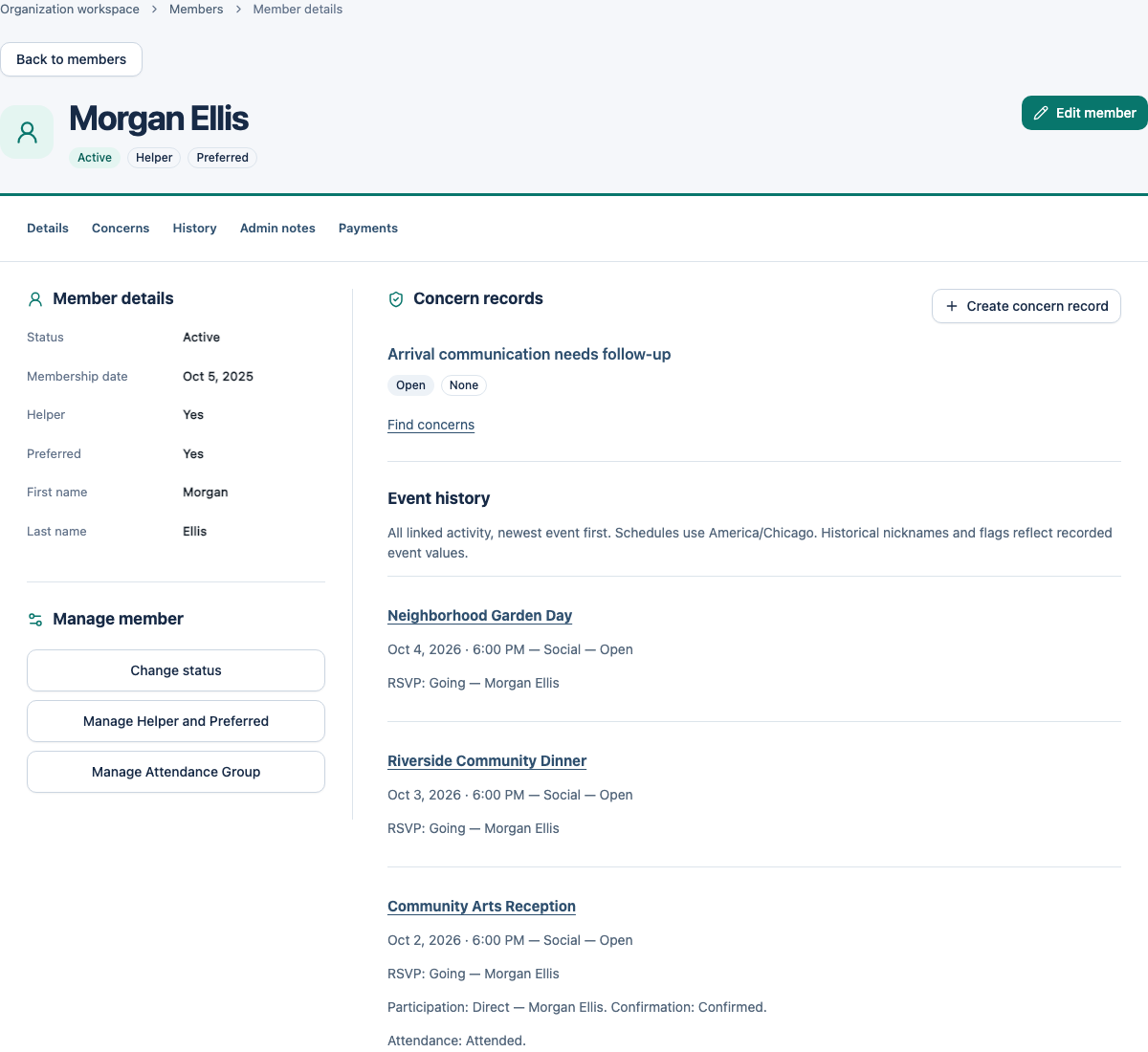
A concern can be Open, Reviewed or Closed. Outcomes are None, Warning, Suspended, Banned, Denied Entry or Other. Changing the outcome to Suspended or Banned prepares the corresponding member-status action and asks for explicit confirmation. Canceling does not save an inconsistent outcome.
An operational Denied Entry action also requires confirmation. It must meet the event’s current rules; linking a completed event does not authorize changing that event. The concern history and resulting action are linked in the audit trail.
Bulk review separates selected members, the intended action and its consequences, and individual saved results. Some changes can succeed while another fails. Retry the same request to resolve uncertainty; start a new selection to change the action.
Closure does not undo a restriction
Closing a concern preserves its content, outcome and history and makes the record read-only. It does not restore Active status or reverse denied entry. Any later status adjustment is a separate Owner/Admin action.
Ordinary member-status changes require an explanatory Admin Note. Restrictions can remove participation from Open finalized regular events while preserving payment and attendance facts. Returning someone to Active does not automatically restore removed participation.
Example: understand this in practice
Maya records ordinary membership context as an Admin Note. A behavior incident belongs in a concern that the organization’s Owners and Admins can review; it is not an author-private note.
Names and situations are fictional.